


Screen Mirroring Z - TV Cast
3.21.28K Reviews
App Specs
- Version
- 2.9.7
- Updated On
- License
- Free
- Downloads
- 10,000,000+
- Developer
- EVOLLY GLOBAL
- Categories
- Tools
- Platform
- Android
Screenshots
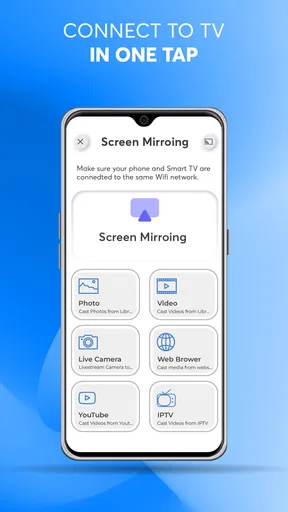
 Analysis by AppCompare
I like the idea of getting a photo, clip, or other phone content onto a television without turning the process into a project. Screen Mirroring Z - TV Cast is aimed at that simple need: it gives you a way to send your phone’s screen or media to a compatible TV. It’s a free tools app from EVOLLY.APP, and it makes most sense for casual sharing at home rather than for people who need a guaranteed, professional-grade display connection.
Where it fits in a home setup
The app is most useful when the content is already on your phone and the television is the easier screen for everyone to see. Think family photos, a short video someone sent you, or a page you want to look at together from the sofa. You can avoid passing the phone around, and you don’t have to move the file to another device first.
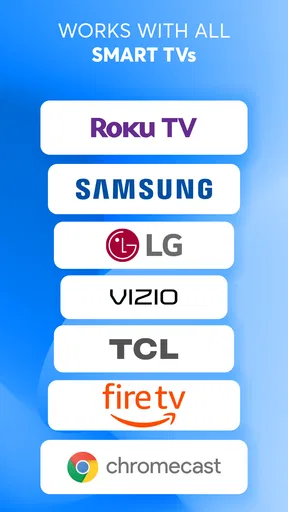
That convenience depends on the TV and network behaving well together. The listing names Samsung, Roku, LG, Sony, Vizio, and TCL among the supported television brands, but a brand name alone doesn’t guarantee that every model or setup will connect in the same way. I’d treat the app as a practical option to try, not as a promise that every television in a household will be ready instantly.
A sensible way to test the connection
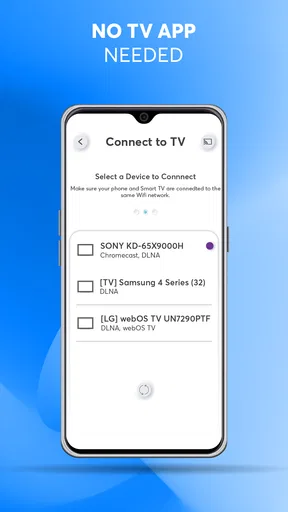
Before relying on mirroring for a group or a planned viewing session, I’d try a low-stakes item first: open a photo or a short clip and check whether the TV appears and stays connected. This gives you a chance to spot network or compatibility snags before everyone is waiting. It also helps separate an app problem from a basic setup issue, such as the phone and TV being on different Wi-Fi networks.
If a television doesn’t show up, checking that both devices share the same network is a useful first step. If they do share it but the connection still fails, restarting the app or checking the TV’s own connection can be more helpful than repeatedly tapping the cast option. Mirroring relies on the relationship between the phone, TV, and home network; the app cannot make a weak or mismatched setup behave like a wired connection.
Screen sharing versus sending a single video
There’s a useful distinction between mirroring the whole phone screen and casting a particular video. Mirroring is handy when you want to show something that isn’t already supported by a TV app, or when you need to move between photos and other phone content. Casting a video is more focused, and can be a better fit when you only want to watch one clip without displaying unrelated phone activity on the television.
That choice also affects privacy. With full-screen mirroring, anything that appears on the phone may be visible on the TV, including notifications. For a family photo session or a quick demonstration, I’d turn on a suitable focus setting or silence notifications first. It is a small preparation step, but it prevents personal messages from becoming part of the room’s shared screen.
Worth Reading Before You Choose

EA SPORTS FC Mobile 26 Is a Bigger Football Game, but It Takes Time

Flipboard Shows What News Apps Must Do Beyond the Feed

Switching to Android Auto Means Rethinking Your Driving Routine

Google Calendar Makes a Crowded Week Easier to Manage

Ludo King Makes the Most of the Minutes Between Plans

Baby Panda World Brings Quick Play to Modern Phones, but Its Game Library Feels Busy
Everyday situations where it earns its place
Picture a relative asking to see pictures from a recent trip. Instead of handing over your phone and crowding around its display, you can bring the pictures up on the television and let everyone look together. For that kind of informal use, a simple mirroring tool can be more convenient than uploading photos to a shared account or moving them onto a laptop.
It can also help when you want to show a web video or a page to someone who is not comfortable navigating a phone. The person holding the device can find the item, while the rest of the room watches on the larger screen. I would still check the content and connection before settling in, because a TV connection that is easy on one visit may need attention after a router, phone, or network change.
How it compares with built-in casting
Many phones and televisions already include their own screen-sharing or casting tools, and those are worth trying first if they meet your needs. A built-in option may be simpler when your phone and TV are designed to work together, and it avoids adding another app to your routine. The advantage of a separate tool like this is having a dedicated place to attempt casting across several named TV brands and to work with phone content in one app.
There is no universal winner. If you mostly watch subscription services, opening the service’s own app on the TV is often the cleaner route: it avoids keeping the phone involved and may be more dependable for protected video. If you need to show a phone screen that has no TV app equivalent, mirroring becomes more valuable. I’d choose the method based on the content, rather than assuming that one casting approach is best for everything.
What to expect from performance
For photos and ordinary navigation, a little delay may not matter. For fast movement, precise interaction, or anything where the TV must respond at the same moment as the phone, even modest lag can be distracting. A wireless mirror is best thought of as a way to share and view content, not as a substitute for a wired monitor or a setup designed for competitive gaming.
Video quality and stability can also depend on the home network and the distance or obstacles between devices. If a stream stutters, I’d first move closer to the router or reduce other heavy network activity if possible, then test again with a short clip. These are practical checks rather than guarantees, but they can help show whether the trouble is temporary network congestion or a more persistent compatibility issue.
Useful habits before you cast
A few small habits make this kind of app less frustrating. I’d keep the phone charged for a longer viewing session, since the phone remains part of the experience, and I’d avoid switching networks midway through casting. For a presentation or a shared video, prepare the content on the phone before connecting; searching around while the TV is already showing the screen can expose notifications or unrelated material.
For web videos, it is worth checking whether the site’s player offers a direct cast control before mirroring the entire display. A direct option may keep the phone freer for other tasks, while mirroring is a useful fallback when the site or content does not offer one. This distinction is especially helpful when you want to keep using the phone privately while the TV continues showing a video.
Getting Started with Screen Mirroring
Diving into Screen Mirroring Z - TV Cast was a breeze. First off, you’ll need to snag it from your app store, and then it’s just a matter of connecting your phone and your TV to the same Wi-Fi network. Easy peasy, right? The app itself guides you through the process with clear instructions, so even if tech isn’t your jam, you’ll be up and running in no time.
Features that Stand Out
Here’s the deal: this app isn’t just about mirroring your screen. It’s like having a mini entertainment hub at your fingertips. You can stream videos, photos, and even music directly from your phone. So, whether you’re showing off vacation photos or streaming the latest episode of your favorite show, it’s all smooth sailing.
One of the cooler features is the ability to cast web videos. You can browse directly from the app and cast videos from popular sites. This makes it super convenient, and you don’t have to fiddle with browser settings or anything.
Performance and Usability
Now, let’s talk about how it actually performs. I was pretty impressed with the smoothness. The connection was stable, and the lag was minimal – which is a huge win in my book. No one wants to deal with buffering when they’re trying to enjoy a movie night.
Another thing worth noting is the app’s interface. It’s clean and intuitive. You’re not bombarded with ads every two seconds, which is a relief. Navigation is straightforward, so even if you’re not the most tech-savvy person, you’ll find your way around easily.
The Nitty-Gritty
Okay, here’s where I get into the details. The app supports a wide range of TV brands, so whether you’ve got a Samsung, LG, or Sony, you’re covered. There’s also support for streaming devices like Roku and Chromecast, which is awesome.
There are a few in-app purchases available if you want to unlock premium features – like removing ads or accessing higher-quality streaming options. I didn’t mind the ads too much since they weren’t overly intrusive, but if you’re looking for a seamless experience, it might be worth considering.
Compatibility and Connectivity
One of the things that really stood out to me was the app’s compatibility. It works with both Android and iOS, so no one’s left out. Plus, the connectivity was reliable throughout my testing. As long as your devices are on the same network, you’re good to go.
In terms of support, there’s a handy FAQ section within the app, and the developers seem pretty responsive to feedback. It’s always nice to see an app that’s consistently updated and improved based on user input.
What the version history means for everyday use
The current Android release is version 2.9.4, and the app first appeared on January 14, 2020. Those details tell me this is an established utility rather than a brand-new experiment, but they do not, by themselves, show which individual functions changed between releases. I would not assume a particular update fixed a particular TV issue without checking the app’s current behavior on my own devices.
For existing users, the practical question is whether the app still finds the television and handles the type of content they use. If it does, there may be no reason to change a familiar setup simply because the version number has moved. If a connection stops working after a phone or network change, I’d retest the basic Wi-Fi arrangement and check for an available app update before replacing the whole casting workflow.
Who should give it a try—and who may prefer something else
I’d recommend trying it if you regularly share phone-based content with people in the same room, especially photos, short clips, or web videos, and your TV is one of the supported brands. It is also a reasonable choice for someone who wants a straightforward casting app rather than a more elaborate home-media system. The app is free to install, is rated for Everyone, and has passed five million installs, so it has found a broad audience even though its average rating is 3.3 from around 32,000 ratings.
I’d skip it if your main goal is uninterrupted viewing of protected streaming services, precise gaming, or a work presentation where a failure would be costly. In those cases, the TV’s native app, an official device-specific casting method, or a wired connection may be more dependable. The right choice depends on whether you need to show the whole phone, play one video, or keep using the phone independently while the TV displays content.
Costs and a few remaining trade-offs
Although the app is free, optional in-app purchases range from $1.99 to $32.99 per item. I’d use the basic experience first and only consider paying if a specific premium option solves a problem I actually encounter. A purchase is not a substitute for checking that the TV is compatible or that the home network is stable, so I would not spend money just to troubleshoot a connection that has not been tested carefully.
The main trade-off is that a dedicated app can make discovery and casting convenient, while still depending on the same network and device conditions as other wireless methods. Ads may also interrupt the experience for some people, even if they are not especially noticeable to others. Before making it part of a regular routine, I’d test the app with the particular TV and content I care about, then decide whether its convenience outweighs those small points of friction.
Final Thoughts
At the end of the day, Screen Mirroring Z - TV Cast does exactly what it promises – and does it well. It’s user-friendly, performs reliably, and offers a bunch of features that make it more than just a basic mirroring app. If you’re in the market for a way to share your phone’s content with a bigger audience (or just yourself on a lazy Sunday), this app is definitely worth checking out.
So, if you’re ready to take your phone’s content to the next level, grab the app and start casting. Your TV is waiting!
Pros
- Easy setup and user-friendly interface.
- Supports multiple TV brands and models.
- No additional hardware required.
- Stream videos in high quality.
- Real-time screen mirroring with low latency.
Cons
- Requires strong Wi-Fi connection.
- Ads can be intrusive in free version.
- Limited features without subscription.
- Not compatible with all apps.
- May experience occasional lag.
FAQs for Screen Mirroring Z - TV Cast
What is Screen Mirroring Z - TV Cast and how does it work?
Screen Mirroring Z - TV Cast is an app designed to mirror your smartphone or tablet screen to a compatible TV. It works by connecting your device and TV to the same Wi-Fi network, allowing you to stream videos, photos, and other content seamlessly. This app supports various TV brands, making it versatile for different setups.
Is Screen Mirroring Z - TV Cast compatible with all TVs?
While Screen Mirroring Z - TV Cast supports a wide range of TV brands, it is important to check whether your TV model is compatible. Most smart TVs with Wi-Fi capability should work, but checking the app’s compatibility list on their official website or app store page is recommended for confirmation.
Does Screen Mirroring Z - TV Cast require an internet connection?
Yes, both your smartphone or tablet and the TV need to be connected to the same Wi-Fi network for the app to function. The app does not require a separate internet connection, but it relies on Wi-Fi to establish a stable connection between devices and ensure smooth streaming.
Are there any subscription fees or in-app purchases in Screen Mirroring Z - TV Cast?
Screen Mirroring Z - TV Cast offers a free version with basic functionalities. However, to unlock premium features such as higher streaming quality and ad-free experience, users may need to opt for in-app purchases or subscriptions. It’s advisable to review the pricing details in the app store before downloading.
What are the main limitations of using Screen Mirroring Z - TV Cast?
Some potential limitations include occasional lag or buffering, which might occur due to network issues. Additionally, not all apps support screen mirroring, so certain content may not display correctly. It’s also essential to ensure both devices are updated to the latest software versions for optimal performance.


